Meshmixer Download 2026 – Free 3D Mesh Editing Software
Download Meshmixer to repair STL files, hollow resin models, generate supports, and prepare 3D meshes for printing. Developed by Autodesk, Meshmixer is one of the most widely used mesh-editing tools for fixing non-manifold geometry, reducing polygon count, and optimizing OBJ or STL files before slicing.
Unlike traditional CAD software, Meshmixer focuses on direct mesh editing.Unlike traditional CAD software, Meshmixer focuses on direct mesh editing. New users can also follow our complete Meshmixer Guide to learn repair, hollowing, and print-preparation workflows. This makes it especially useful for users who need to repair downloaded models, clean scanned meshes, or prepare files for resin and FDM 3D printing workflows quickly.
| Latest Version | 3.5.474 |
|---|---|
| Updated | May 2026 |
| Developer | Autodesk |
| File Size | 110 MB |
| Supported Systems | Windows 10/11 & macOS |
| Best For | STL Repair, Hollowing, Support Generation & Resin Printing |
| Offline Installer | Available |
| License | Free to Use |
What is Meshmixer? (Overview)
Meshmixer is a free 3D mesh-editing software developed by Autodesk for working with triangle-based mesh formats such as STL, OBJ, and PLY. It is widely used for repairing broken STL files, hollowing resin models, cleaning photogrammetry scans, generating tree supports, reducing polygon count, performing Boolean operations, and optimizing meshes before slicing for 3D printing. Unlike traditional CAD software that focuses on parametric modeling, Meshmixer specializes in direct mesh manipulation, making it faster and more practical for repair and print-preparation workflows.
Specification
- Repair damaged or non-manifold STL files.
- Edit scanned 3D models and meshes
- Prepare complex 3D shapes for printing
About file size
- Lightweight software (around 110 MB)
- Runs smoothly even on older computers
- Designed mainly for mesh editing and repair, not for creating full 3D models from scratch
-
Some older systems may still experience startup or OpenGL issues. If the software fails to launch, follow this guide for fixing Meshmixer not opening problems.
Today, Meshmixer remains popular among resin printing hobbyists, miniature creators, engineers, dental labs, jewelry designers, cosplay prop makers, and users working with 3D scans. Many creators combine Meshmixer with popular slicers and printing tools such as Cura, PrusaSlicer, Bambu Studio, Lychee Slicer, and Chitubox to create a complete and efficient 3D-printing workflow.
Why Meshmixer Still Matters in 2026
Although Autodesk no longer releases major updates frequently, many users still compare meshmixer alternatives for modern STL repair and resin-printing workflows. Even so, meshmixer remains a widely used tool for repairing and preparing 3D models before printing. Many STL files contain issues such as non-manifold geometry, disconnected shells, broken normals, thin walls, and damaged scans that can lead to slicing errors or failed prints. While slicers can detect some problems, they often cannot fully repair them.
Meshmixer helps solve these issues with tools like Inspector, Make Solid, and adaptive remeshing, allowing users to fix geometry problems before exporting models to Cura, PrusaSlicer, Bambu Studio, Lychee Slicer, or Chitubox. Because of its lightweight design and practical workflow, Meshmixer still remains an important tool for STL repair and resin printing preparation in 2026.
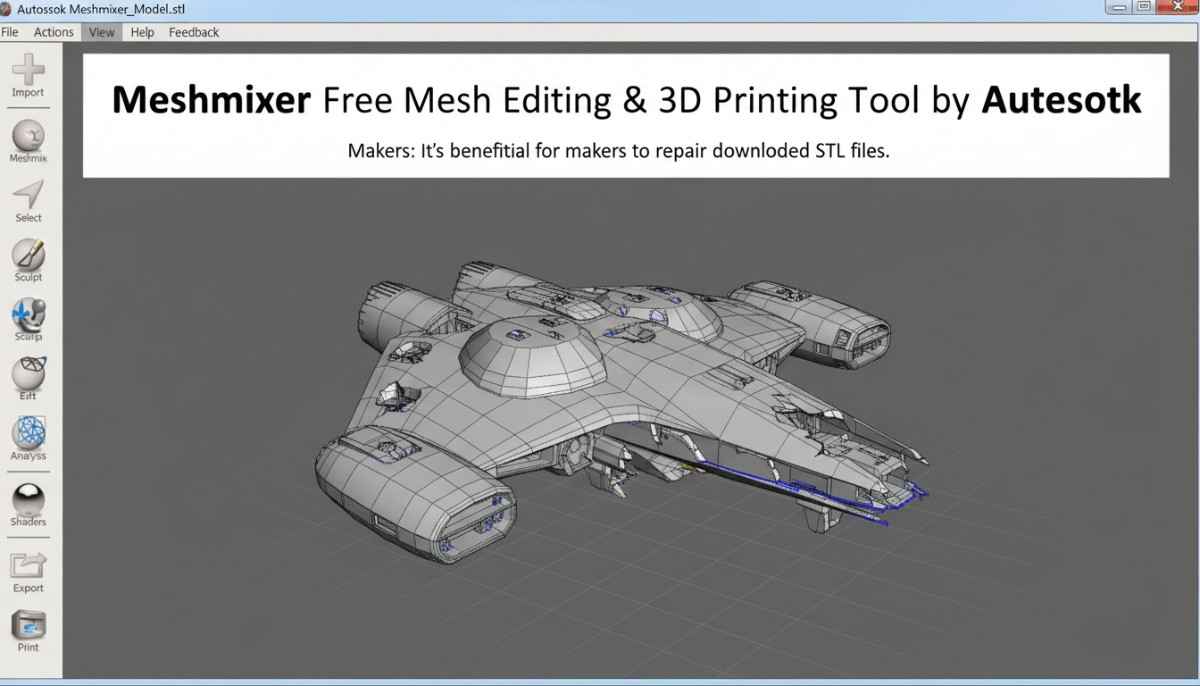
Makers:
Makers often use Meshmixer to repair downloaded STL files and prepare them for reliable 3D printing.
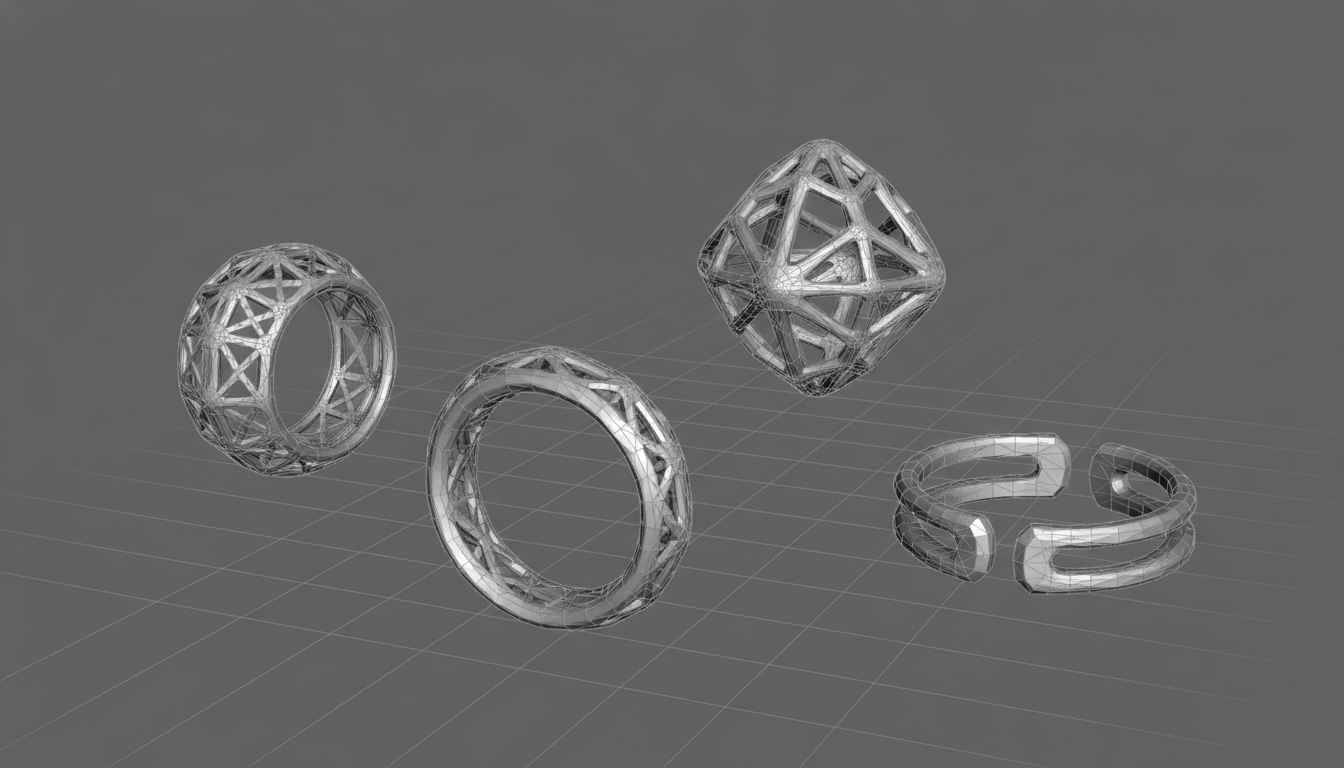
Jewelers:
Jewelers use Meshmixer to hollow models and optimize designs, which helps reduce material costs when printing or casting jewelry.
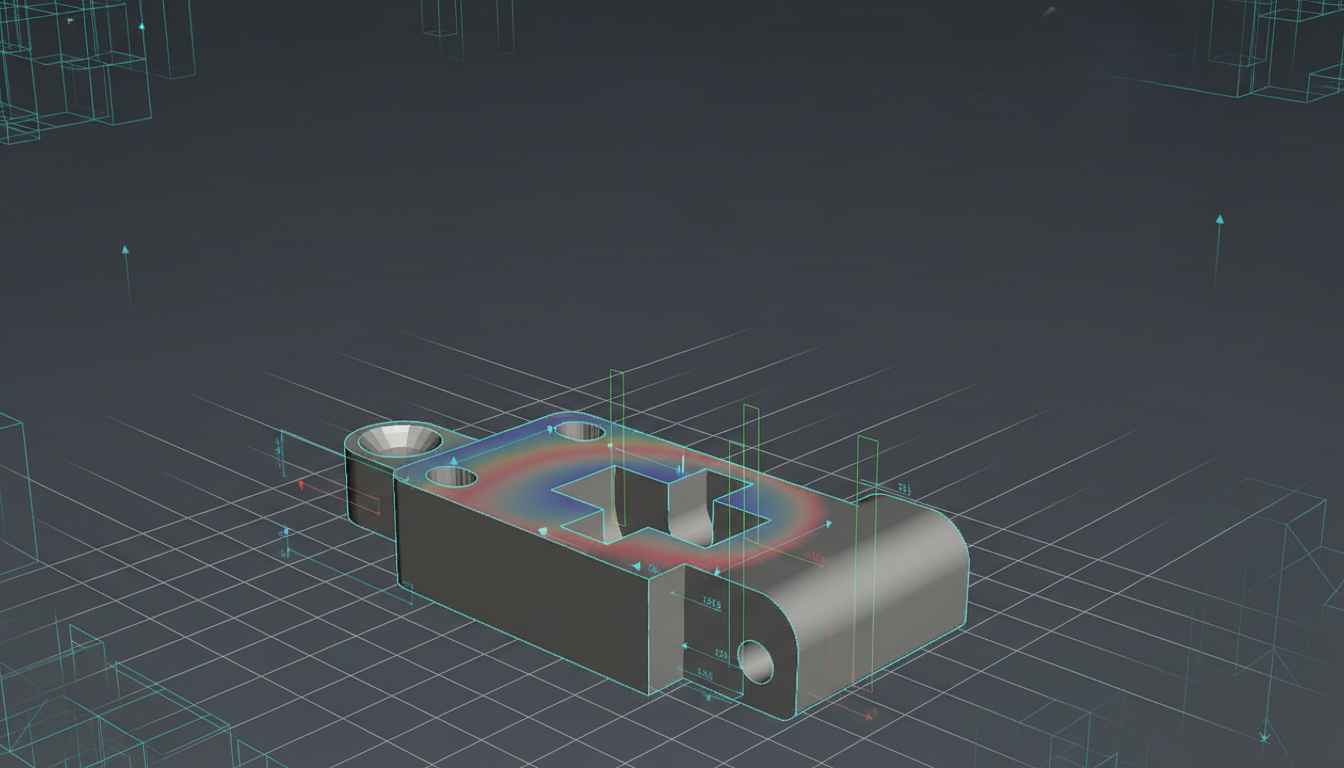
Engineers:
Engineers rely on Meshmixer to analyze wall thickness and validate model geometry before manufacturing or prototyping.
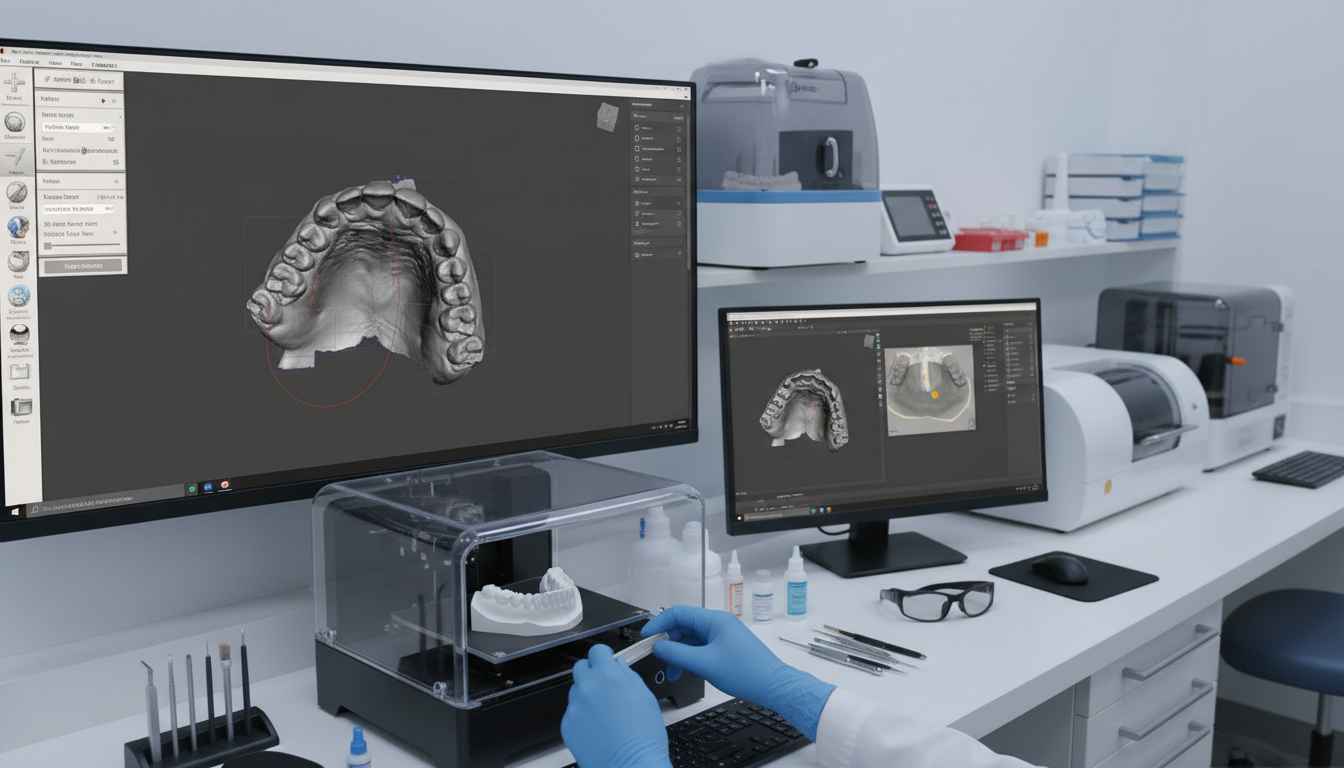
Dental Labs:
Dental professionals use Meshmixer to clean scanned models and prepare accurate files for dental 3D printing.
Meshmixer Tools for Fast Mesh Repair and Editing
Meshmixer includes a wide range of tools designed to simplify mesh editing and 3D printing preparation.
STL Repair & Inspector Tool
Meshmixer’s Inspector tool automatically detects common mesh problems such as holes, non-manifold edges, flipped normals, and disconnected shells. Small geometry issues can often be repaired with a single click, while more complex models can be rebuilt using tools like Make Solid, Reduce, and Remesh to create clean and printable surfaces. This feature is especially useful for repairing damaged STL files downloaded from online libraries or created through 3D scanning workflows.
Tree Support Generation
Meshmixer can generate lightweight tree-style supports that use less resin, remove easily, and reduce surface damage compared to many traditional support structures. These supports are commonly used for miniatures, figurines, statues, and other organic resin prints where preserving surface detail is important. Many resin printing users still prefer Meshmixer’s support workflow over slicer-generated supports for delicate models.
Hollowing for Resin Printing
The Hollow tool in Meshmixer creates internal cavities inside models to reduce resin consumption, lower print weight, decrease suction pressure, and minimize print failures. Users can also add drain holes, escape holes, and custom wall thickness settings to improve printing reliability for SLA and DLP workflows. Many resin printing users begin with a wall thickness of around 2–3 mm and place drain holes near low-pressure areas before exporting the model into slicers like Lychee or Chitubox.
Adaptive Remeshing & Sculpting
Meshmixer includes adaptive remeshing and sculpting tools that allow users to reshape models using brushes such as Inflate, Smooth, Crease, Flatten, and Drag. During editing, adaptive remeshing dynamically adjusts topology density to preserve detail while avoiding stretched triangles. This workflow is particularly useful for scanned models, organic sculptures, miniature customization, and repairing damaged surfaces.
Boolean Operations and Plane Cuts:
The Make Solid workflow converts damaged or non-watertight meshes into clean printable geometry. Combined with Boolean operations, users can merge objects, subtract shapes, split meshes, create openings, and customize models without requiring advanced CAD knowledge. These tools are commonly used for quick mesh modifications and repair workflows before printing.
How to Use Meshmixer?
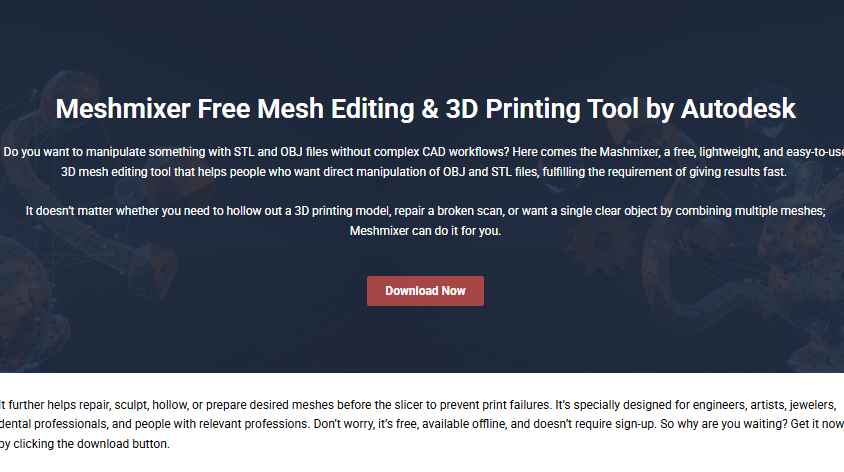
Step 1: First, install and launch the tool by following the steps (mentioned below in this guide).
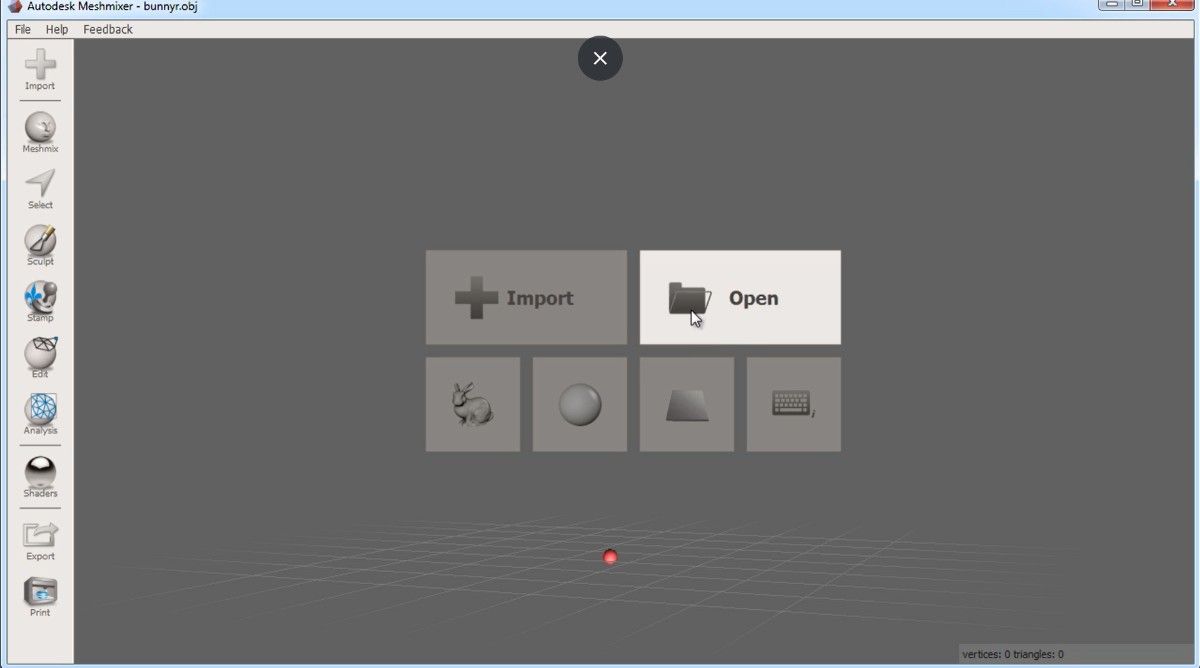
Step 2: Go to the File menu and import your mesh by selecting OBJ or STL files from local storage. This is the initial point of sculpting, repairs, and repurposing.
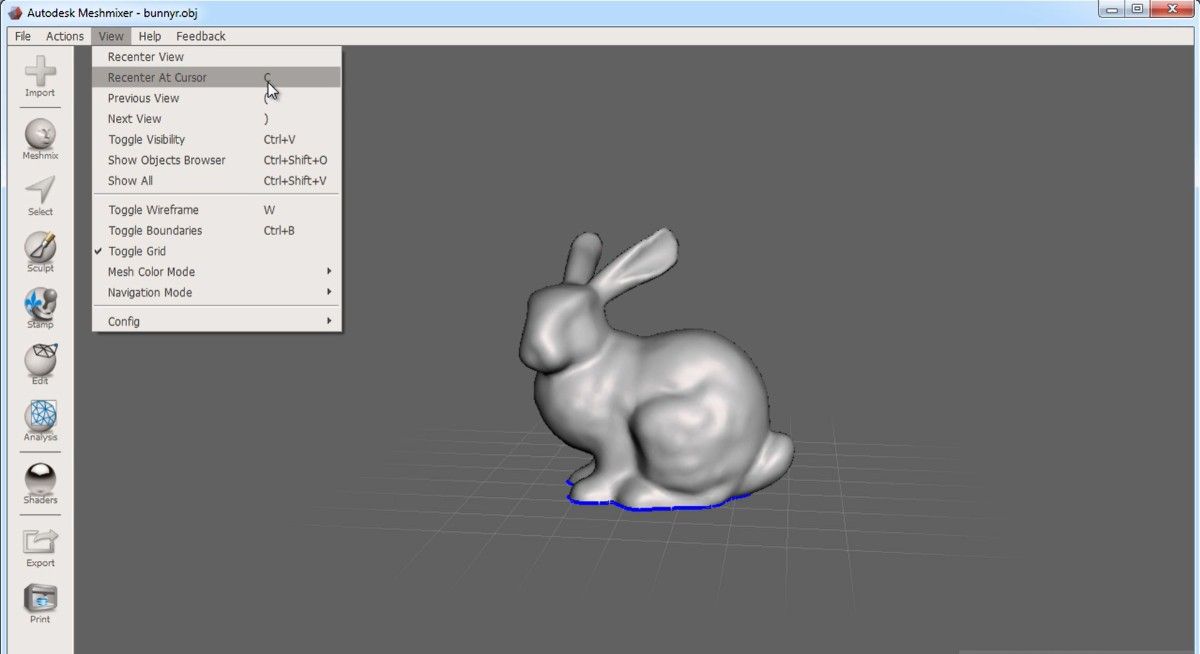
Step 3: After that, identify holes, stray meshes, or flipped normals with the inspector tool. If minor changes, fix them with one click; otherwise, use Make Solid or Reduce for deeper fixes.
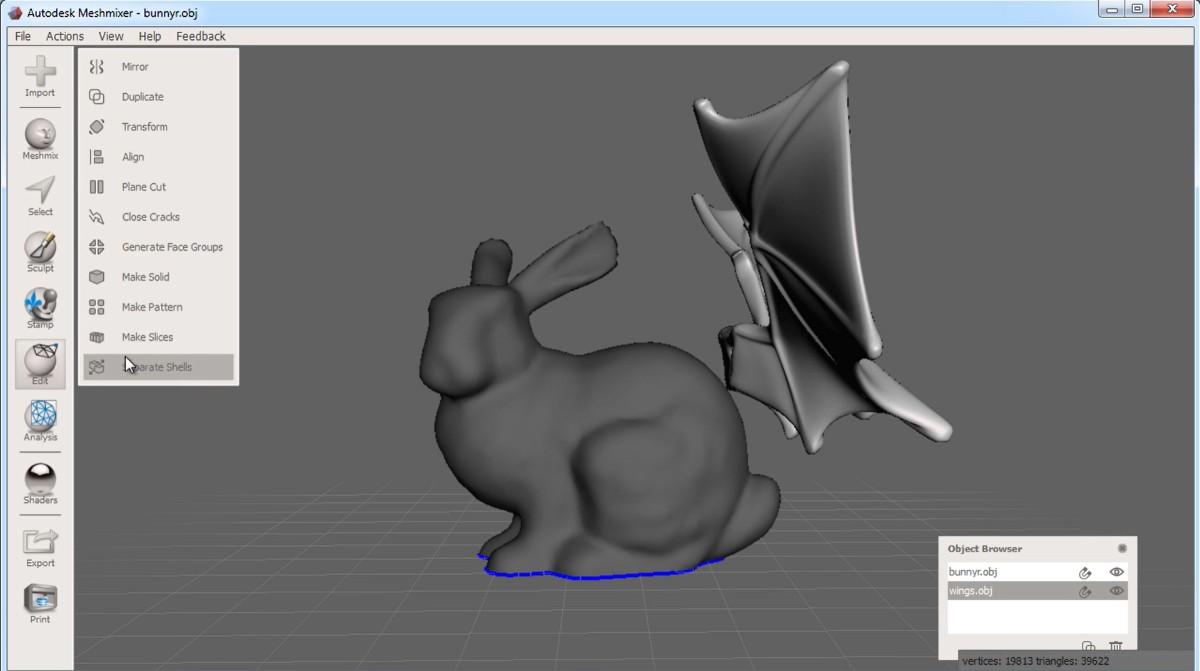
Step 4: Now shape your model by selecting the desired operations, such as plane cuts, sculpting brushes, hollowing, or Boolean operations. Don’t worry, you will not lose control of your 3D design here.
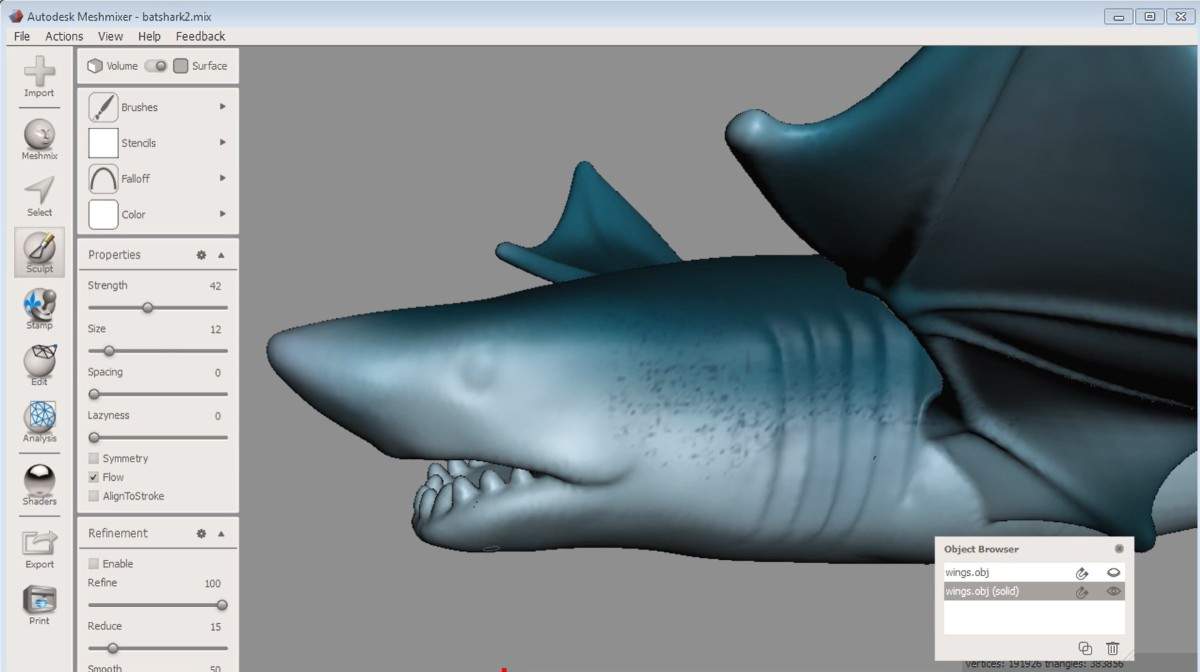
Step 5: Now it’s time to test your changes; use the Run analysis.
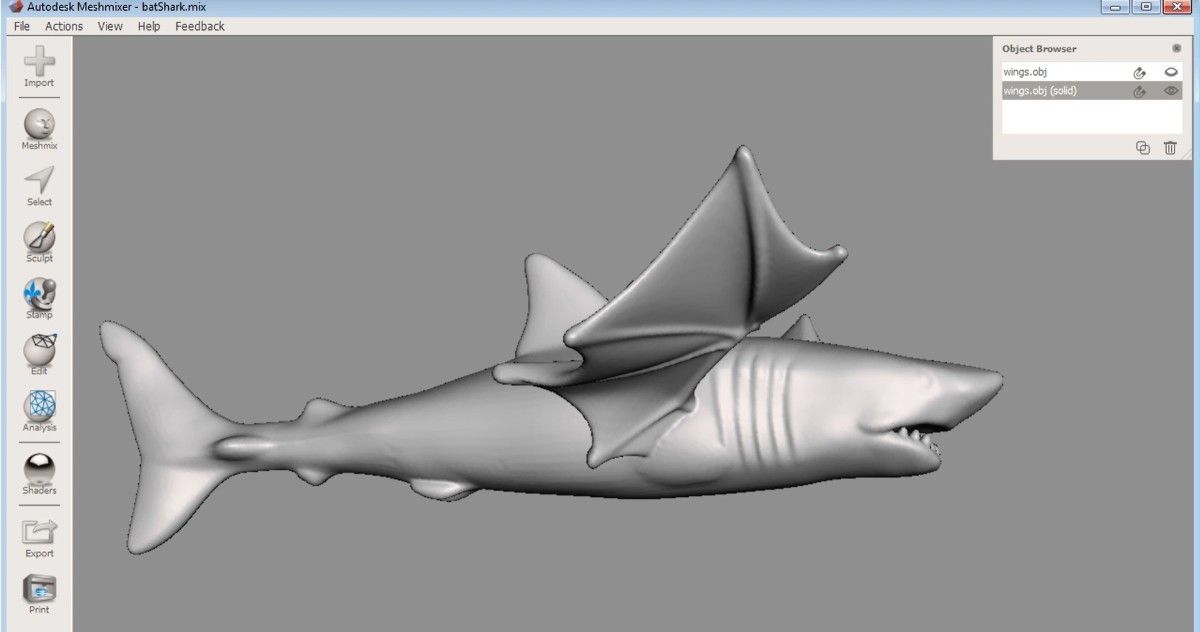
Step 6: Make any finishing touches if needed, export your design, and print.
Common Meshmixer Workflows
STL Repair Before Slicing
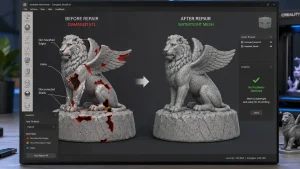
One of the most common Meshmixer workflows involves repairing downloaded STL files before sending them to a slicer. Many models from online libraries contain disconnected shells, holes, flipped normals, or broken geometry that can cause slicing errors and failed prints. Users typically import the STL file into Meshmixer, run the Inspector tool to detect issues, remove disconnected mesh parts, and use Make Solid if deeper repair is needed. After fixing the geometry, the repaired STL is exported and loaded into slicers such as Cura or PrusaSlicer. This workflow helps prevent failed slices, missing layers, broken geometry, and print instability during the printing process.
Resin Hollowing Workflow
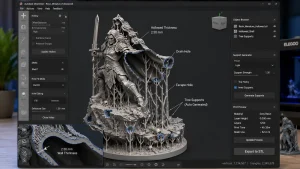
Meshmixer is widely used in resin printing workflows for hollowing models before printing. Resin users often import a model, apply the Hollow tool with a wall thickness of around 2–3 mm, add drain holes, and inspect the internal geometry before exporting the final STL file. The hollowed model is then opened in slicers like Lychee or Chitubox for support generation and printing preparation. This workflow helps reduce resin usage, lower suction pressure, minimize cracking risks, and decrease the chances of failed resin prints.
Scan Cleanup Workflow
Photogrammetry scans and 3D-scanned models often contain noisy surfaces, uneven topology, and extremely high polygon counts that make them difficult to edit or print. Meshmixer helps clean scanned geometry using smoothing brushes, Reduce, adaptive remeshing, and surface repair tools to simplify the mesh while preserving important details. After cleanup and optimization, users can export cleaner and more printable geometry for further editing, slicing, or manufacturing workflows.
Still Confused, is Meshmixer for you?
- Quick surface stamping and 3D sculpting
- Drag-and-drop mesh mixing and model combination
- Simplifying and remeshing complex 3D designs
- Creating surface patterns and lattice structures
- Visual analysis and measurement of 3D models
- Practical Boolean operations such as cutting or merging meshes
Note: Meshmixer is mainly designed for mesh editing and repair. It is not intended for creating parametric 3D designs from scratch.
Safe & Trusted Meshmixer Download
We provide access to the latest available version of Meshmixer for Windows and macOS using clean and verified installation files. All downloads are checked before publishing to help users avoid corrupted installers, modified files, or unsafe third-party packages.
Why Users Trust This Download
- Free offline installer available
- No signup or account required
- Lightweight installation package
- Compatible with Windows 10/11 and macOS
- Clean installation workflow
- Based on original Autodesk distribution files
For better security, always scan downloaded files with your antivirus software before installation.
Download Meshmixer
- Name: Meshmixer
- Developer: Autodesk
- Latest Version: 3.5.474
- Offline Installation: Available

System Requirements for Downloads
Windows 64-bit
- Windows 10 or above
- OpenGL-compatible GPU
- Needs almost 200 MB of disk space
Linux (Wine Method)
- It runs with the help of Wine, but with minor UI limitations for the users.
- It is usually used for repair-only workflows on Linux.
What’s New
As of the 2025–2026 update, Meshmixer includes several improvements that make mesh editing and 3D printing preparation easier and more efficient.
- Improved Convert-to-Solid workflow that produces cleaner geometry and makes models easier to prepare for 3D printing.
- Enhanced selection tools that provide more precise and intuitive surface targeting, allowing users to edit meshes faster.
- Better remeshing performance, giving users improved detail and smoother results where needed.
How to Install Meshmixer 3.5.474
Follow the steps below to install Meshmixer on your system.
Install Meshmixer on Windows (10 / 11 – 64-bit)
- Download the file meshmixer-win-3-5-474.exe from the download section above.
- Right-click the file and open Properties → Digital Signatures to verify Autodesk’s certificate.
- Double-click the installer. When the User Account Control prompt appears, select Yes.
- Accept the license agreement and choose the installation folder (default: C:\Program Files\Autodesk).
- Optional: disable Analytics & Customer Feedback if you prefer not to share usage data.
- Click Install. The installation usually takes 10–20 seconds on most systems.
- Click Finish and launch Meshmixer to start importing and editing models.
You can also run Meshmixer as a portable installation using this command:
meshmixer-win-3-5-474.exe /S /D=%USERPROFILE%\Apps\Meshmixer
Install Meshmixer on macOS (Monterey or Later)
- Download the file meshmixer-mac-3-5-474.dmg (approximately 92 MB).
- Double-click the file to mount the installer.
- Drag Meshmixer.app into the Applications folder.
- If macOS blocks the application, open System Settings → Privacy & Security and click Open Anyway.
- Launch the application and start editing your 3D models.
User settings are saved in:
~/Library/Preferences/com.autodesk.Meshmixer.plist
Meshmixer does not have a native Linux version, but the Windows version can run using Wine.
- Install Wine and Winetricks:Copy code (sudo apt install wine winetricks)
- Download meshmixer-win-3-5-474.exe.
- Run the installer using:Copy code wine meshmixer-win-3-5-474.exe
- Follow the same installation steps used for Windows.
To launch the application later, create a desktop shortcut pointing to:
Copy code (wine ~/.wine/drive_c/Program Files/Autodesk/Meshmixer/meshmixer.exe)
| Meshmixer | Blender |
|---|---|
| Better for STL repair | Better for full 3D modeling |
| Easier for beginners | Steeper learning curve |
| Faster mesh cleanup | Advanced animation tools |
| Lightweight software | Larger and more complex |
| Excellent hollowing tools | Better rendering system |
Many users combine both tools in their workflow by using Meshmixer for STL repair and print preparation and Blender for advanced 3D modeling and rendering.
Conclusion
Meshmixer remains a reliable and lightweight tool for repairing STL files, hollowing resin models, generating supports, and preparing meshes for 3D printing. Its easy workflow and practical repair tools continue to make it popular among hobbyists, engineers, and resin printing users. Whether you need to fix damaged geometry, optimize scanned models, or prepare files before slicing, Meshmixer still provides a fast and efficient solution for modern 3D-printing workflows.
FAQs
Why does Meshmixer auto-repair delete my entire model and show the “magenta disconnected components” error?
This usually happens when the model contains several disconnected mesh parts. To fix it, go to Select → Connected Components → Separate Shells and isolate the different mesh pieces. Remove the very small shells using the Delete (Del) key, then run the Inspector tool on the main model and choose Minimal Fill to repair gaps without damaging the geometry. After that, use Make Solid with a high accuracy setting to convert the mesh into a clean, watertight model.
How can I make Meshmixer generate supports only for larger overhangs instead of tiny areas?
Yes, you can control this in the support settings. Go to Analysis → Overhangs → Advanced and increase the Minimum Support Area (for example, 4 mm²). You can also adjust the Contact Tolerance to reduce unnecessary supports. After clicking Generate Support, review the model and remove any extra pillars by pressing X while in Support-Edit mode.
What is the best workflow to hollow a tube-shaped model in Meshmixer without collapsing the ends?
To hollow a tube-shaped model safely in Meshmixer, follow these steps:
Go to Edit → Hollow and set the wall thickness (for example, 2 mm).
Remove the two outer end caps of the tube.
Enable Select Back Faces, then double-click each inner ring of the tube.
Use the Bridge tool to connect the matching boundaries.
Finally, smooth the connections using the Smooth brush with low strength to keep the geometry clean.
How can I repair complex holes in Meshmixer when the standard “Fill” tool doesn’t work?
If the regular Fill option cannot repair the hole, you can use the Make Solid tool instead. Go to Edit → Make Solid, choose the Accurate mode, and increase the Solid Accuracy slider until the model details are restored. This process rebuilds the mesh by re-voxelizing the entire model, which helps seal internal gaps that the normal hole-fill tool may miss. After that, click Accept or export the repaired model to continue editing.
How can I reduce a high-poly scan in Meshmixer without losing sharp edges?
To simplify a high-poly model while preserving details, go to Edit → Reduce. Enable the option Preserve Sharp Edges and set Boundary Weight to 100. Then reduce the mesh gradually by percentage (for example, start around 50%). Repeat the process until the triangle count reaches your desired level while keeping the important edges and corners sharp.
How can I split a single STL file into color zones for multi-material printing in Meshmixer?
To divide an STL model into separate color areas for multi-material printing, follow these steps:
Use Select → Brush to highlight the region you want to separate.
Click Separate → Extract or press Y on the keyboard.
Repeat the process for each color section of the model.
Export the parts as AMF or separate STL files, then assemble them in your slicer’s MMU workspace for multi-material printing.
Why does the Hollow tool fail on complex sculptures in Meshmixer, and what settings can fix it?
If the Hollow tool fails on complex models, try adjusting the mesh settings before hollowing. Increase the Mesh Density to around 350–500 cells and enable Preserve Sharp Edges to maintain important details. After completing the hollow operation, run Make Solid and set the Solid Accuracy to about 100 µm. This two-step method helps repair self-intersections and stabilizes the mesh created during hollowing.
Are Meshmixer tree supports better than supports generated by a slicer?
Meshmixer tree supports are usually lighter and easier to remove, which makes them ideal for resin prints and delicate models. They tend to snap off cleanly and leave fewer marks on the surface. However, these supports are static, so if you resize the model later, you will need to regenerate them. For stronger and temperature-controlled materials such as ABS, the support algorithms in some slicers may provide more stable results.
Why does my mesh break or explode when I use Boolean Difference in Meshmixer?
This usually happens because the mesh surface is non-manifold or contains geometry errors. Before applying the Boolean operation, run the Inspector tool to repair the mesh. Then use Plane Cut with the option Slice (Keep Both) to create a clean and flat intersection. After fixing the mesh, apply Boolean Difference again, and the operation should work without damaging the model’s faces.